


Extended settings provide additional options for each element to further customize the form. Some extended settings are shown for all elements whilst others are specific to certain types.
Active (From / To)

Individual elements can have a specific Active date range, or can be manually activated / deactivated, useful to keep an element in the form if it is to be copied for future events.
This setting will additionally impact all child elements.
Show If

Elements can be shown / hidden dynamically by creating a Filter, any field / function can be used here. If the value depends on an element in the same step then the form will automatically refresh the step when that element is updated.
This setting will additionally impact all child elements.
The above example will only show the element if the field FirstName is not blank.
For Group Registration forms, an additional option for Show If determines for which participant(s) the expression must be true.
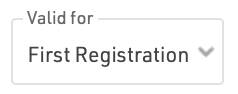
- First Registration - must be true for the first participant (other values are not considered)
- All Registrations - must be true for all participants in the group
- Any Registration - must be true for at least one participant in the group
In Self Service forms an additional option, Show If (old values), is available which only considers the original value at the time of opening the registration form.
 In the above example, the element will only be shown if the CheckBox TShirt is true before opening the form - if the value is changed, it will not be hidden.
Validation Rule / Error Message

Validation rules are evaluated when progressing to the next step of a form, and only if all validation rules return true will the user be able to progress.
The validation rule should be a Filter, and the error message will be shown in red below the element if the validation rule is not true.
The above example would show the validation error message if the FirstName field is 20 characters or greater in length.