As always with RACE RESULT 12, there are multiple ways to achieve these tasks, in our own testing we had multiple different methods of doing so. The idea of this task was to encourage you to think about how you can use the existing data in your file to calculate something else.
Up to version 12.0.22 there is an issue with the handling of the Team Score Participant Gender fields, you can test this solution online and this will be fixed in subsequent updates.
Team Gender
As mentioned in the task description, this could easily be achieved using TS1.Gender which returns 1, 2 or 3 for Male, Female or Mixed respectively. However that method would only work with a team setup like this, not a standard relay where individual team member details are normally saved in ATFs. The method below could be applied to that replacing the Gender fields respectively.
First we create a user-defined function to convert each participant's Gender to a number value using a User-Defined field.

In this case our Gender fields will be returned as F or M so we can use the translate() function which is also used in the default GenderMF and MaleFemale User-Defined Fields. If storing data as Male or Female then you may need to use a different function here such as If().
With each participant represented by a number, if we sum together the values for each team member then we can calculate the team gender, a sum of 4 would be all male, a sum of 5,6 or 7 would be mixed and a sum of 8 would be all female.
To then convert this to a text-description we use the following calculation in the TeamGender User-Defined Field.
Choose(Val(GenderNumber([TS1.P1.Gender])+GenderNumber([TS1.P2.Gender])+GenderNumber([TS1.P3.Gender])+GenderNumber([TS1.P4.Gender]));;;;"Male";"Mixed";"Mixed";"Mixed";"Female")
Using Team Score 1 which groups team members together we then call each team member Gender and convert it to a number using the user-defined function, and then use a choose() to return the corresponding team gender. In this case, since a sum of 1, 2 or 3 is impossible we have some empty parameters after the Sum.
Team Members on Course
For this task we had 2 completely different approaches, the solution below shows how Team Scores can be used in different ways, not just for actually scoring teams but for handling data from groups of participants.
First we need to know where each participant was last seen, for this we create a result for each Timing Point which always takes the last read at that Timing Point.

It is also useful to create an additional result here using TMaxID() to take the ID of those results which has the maximum time, this indicates at which point each participant was last seen. The order of these results also helps make the next step easier. \
For the Team Score we wanted to create teams formed only of riders who were on course, the Filter for the team was set to consider only participants where T10 was greater than 11. Than means that the ID of the last time they were seen was 12 or 13 and so they were either on the finish straight and not entered the pits or they had passed the pits and started a new lap. The TMaxID() could have been applied directly to the filter.

As we only want to check teams with more than 1 rider on course the minimum participants was set to 2, we could have up to 4 in theory and the team could contain any number of females. Within each team we sorted participants according to their last seen time, using TMax11;13, so the rider who was last seen, earliest would be first in the team.
Teams were formed using Contest and Club for aggregation, as per the standard TeamFormation.
To make it easier to check where participants were on course we also created a user-defined field to return their last seen position.

This takes the LastSeenID in T10 to return a name for each value using Choose(), since choose always starts from 1 we first subtract 10 (since our IDs were 11-13)
To view the list of teams who had more than 1 rider on course we set up an Output List which could be easily monitored during the race.
The list was grouped by the Team Name, using the Club field, and then sorted by their position within the LastTimeSeen Team Score so that the participant who was on course first is listed first.

To only show relevant teams (those with more than 1 rider on course), a filter was applied using LastTimeSeen.Number > 1, which now excludes any participants who are not part of a team according to this team score since the minimum for a team is 2.

For each participant we simply show their RiderID which was the equivalent bib they were wearing, name, LastSeenPosition and also the time at which they were last seen.

Now we can see that team 17 has 2 riders on course currently.

It is important to consider that this would only show teams who currently have more than 1 rider on course, it could not identify any incidences earlier on, this would not be possible with the current setup. If the AfterPits only captured the pit exit then it could in theory be calculated.
Too Long On Course
The tricky part here is considering how we can filter to only show the participants concerned, since we can't filter on an elapsedtime() we based this on using the now() function. This returns a date and time stamp for the event based on the current time and using the event time zone, obviously there was a big clue in this as this was given in the task setup.
Now() returns a date/time, we created a User Defined Field TimeNow with a date and time in the same format, this was returned as 2020-04-15 20:37:00. In a real file you would replace [TimeNow] with Now().
To extract the current time we need the 8 right characters, this can be achieved by using the right() function, however this is still formatted as text and so cannot be compared to a time value. We overcome this by using the TimeFromString(), the complete calculation to covert this to the current time is as follows.
(timefromstring(right([TimeNow];8))
To calculate how long a participant has been on course we now need to look at the last time they were seen, we have this in Result 12, which is the last reading at the AfterPits.
As this is a 25 hour event which goes over midnight, there are some limitations and additional considerations. When we pass midnight the Result would return a time greater than 24 hours, however the current time being returned is only 24 hour and so would revert to 00:00:00. The easiest way to manage this is to convert the last time seen to a true 24 hour time of day, however this will also create a window where this comparison will not work when a rider's last seen is before midnight and the clock has passed midnight.
To convert the time in Result 12 to a time of day we use the % operator, which returns the remainder after division of two numbers. We use the following calculation.
T12%86400
86400 is the number of seconds in 24 hours, so this gives us the remainder when Result 12 is divided by 86400, which returns a time of day always.
To calculate how long a participant has been on course we can now use both calculations in one expression.
(timefromstring(right([TimeNow];8)))-(T12%86400)
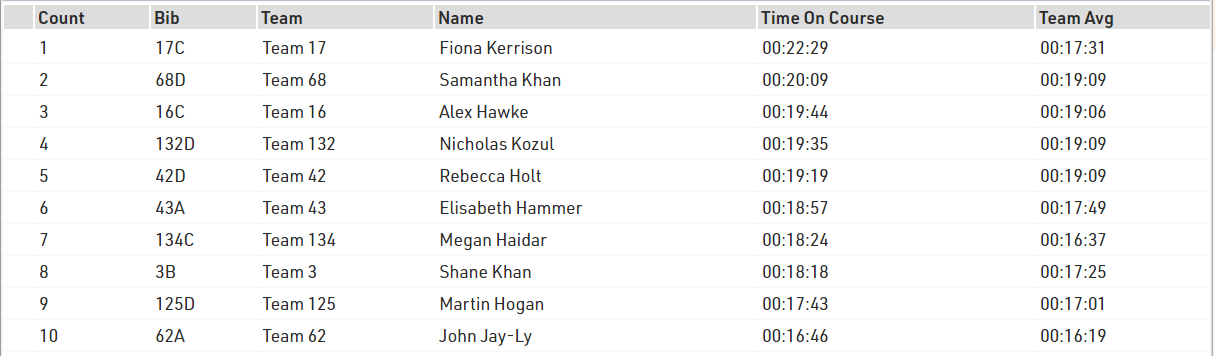
This will be used in the filter of our output list, we need to compare this to 1.5* the team's average lap time. The current average lap time for a team can be called with TS2.LapTimeTeamAvg and we can easily multiply this b 1.5 We also want to make sure we only consider participants who are currently on course and so we also filter using Result 10 as already setup for task 2.

The sorting is also based on the current time on course with those who have been out longest shown first.

For the data fields we use standard identification fields and also show a count using Position, the time on course could also be shown using elapsed time, but here we will use the time on course already calculated.