The Lists templates allow you to publish lists on my.raceresult.com, each tab is intended to make it easier for viewers to find what they need.
The general use case for each template is as follows:
- Participants - Intended for start lists / information before the race.
- Live - Intended for Live Results DURING a race, to show leaderboards etc.
- Results - Intended for full results lists after a race.
Settings
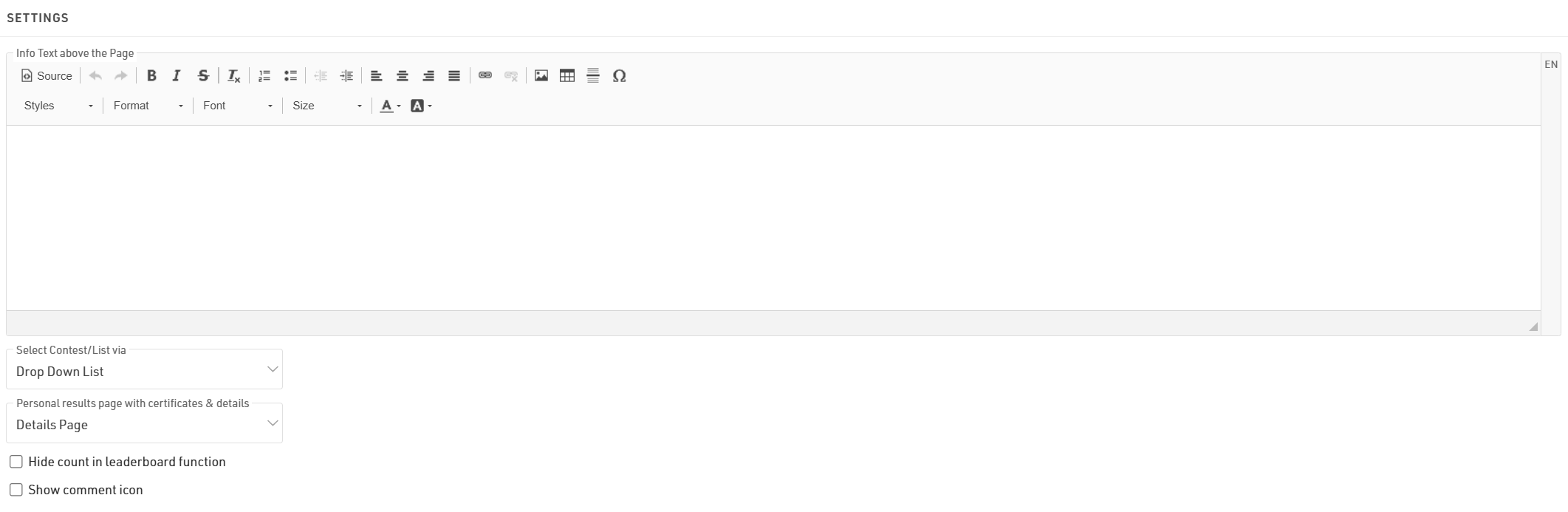
The info text will be shown above your lists and can contain additional HTML content.
If you have multiple lists they can be displayed / selected using either a drop-down list or selector boxes, the 2 options are explained in the below article.
If you select a Personal results page with certificates & details it will enable a popup window when clicking a participant within a list, this popup contains the details list and additional details as configured in the Participant Views settings.
When using the Leaderboard function for a list it will have an option to "Show X participants" where x is the total number of participants within the group, hiding this will replace X with "all."
Selecting the Show comment icon will show a  next to each participant in the list. Allowing viewers to see and add comments for specific participants.
Publish Lists
You can publish multiple lists through my.raceresult.com, however in most cases it is recommended to publish a single list containing all the necessary information, this keeps the user-experience simple.
When publishing multiple lists on a tab the user will be able to select the list using either the drop-down menus or box selector according to the Select Contest/List via settings, the name of the list can be adapted using the optional label.

Lists can be activated / de-activated individually so they can be hidden until required. Clicking the link to open a list will open the page directly with that list opened, this will still work even if the list or tab is not active according to the published dates allowing you to preview a list before publishing.
You can apply Contest filters to lists, if you have multiple options selected for the Contests then filters / box selector will additionally include the Contest options before the list.
The leaderboard function for lists will reduce each group within the list to the corresponding number of records, buttons to show more or show all will be shown below each group.
With live update enabled lists will be automatically updated in real-time, most useful for live leaderboards. Note that this will only be active within the date range of the event according to the Basic Settings.
Advanced settings can be set for each list:
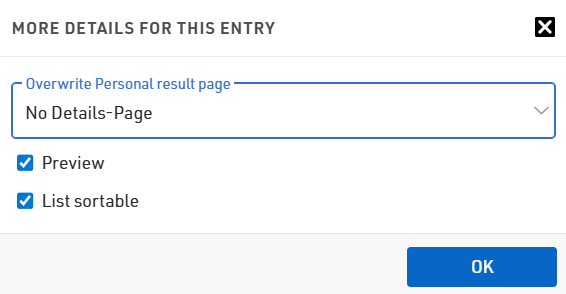
If you want to only show the Details Page on specific lists you can set use Overwrite Personal result page to enable or disable personal results pages for that specific list
If Preview for a list is disabled then selecting this list will instead automatically open a PDF of the list. Similarly if PDF is enabled then a link above will be shown allowing users to open the list in PDF format.
When List Sortable is enabled then users can sort each column in ascending / descending order by clicking the column headers.
Drop-Down / Box Selector
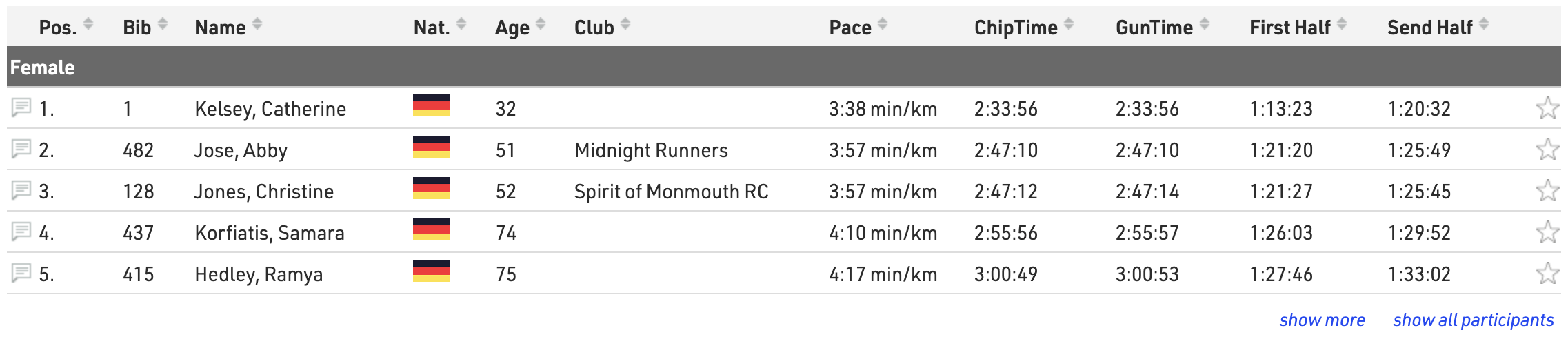
When publishing multiple lists then these can be selected via either a drop-down menu or box selector.
Drop Down
A dropdown is added above the lists, before any other drop-down filters within the list, to choose which list should be opened. If also filtering by Contest in the publish list settings then a dropdown for the Contests will be shown first.
Box Selector
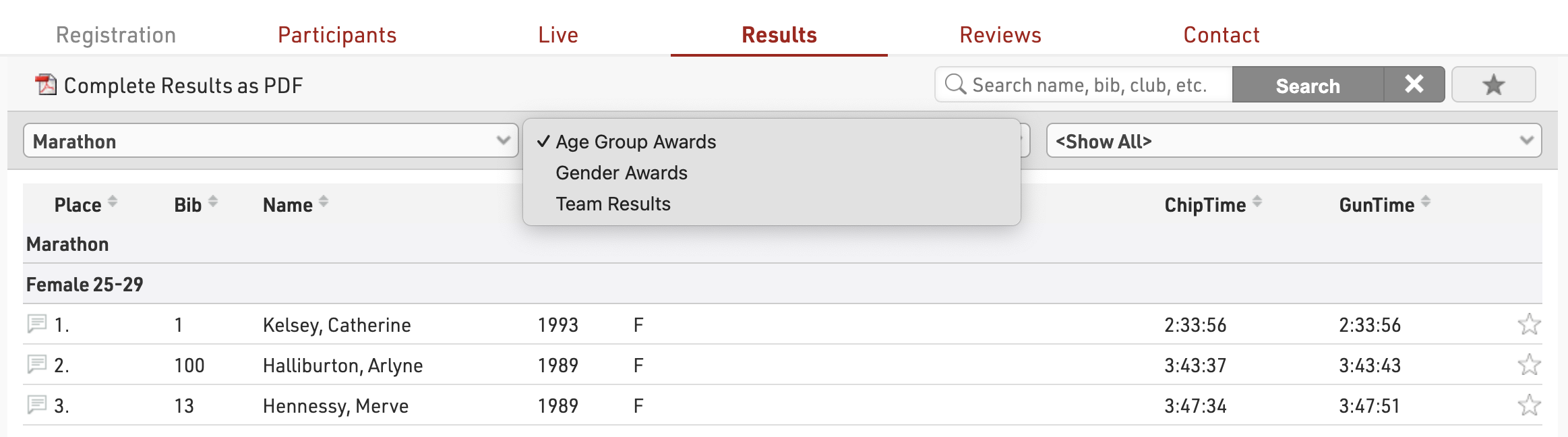
When opening the page a series of Boxes is shown for each Contest (if filtering by Contest) and a box for All Contests, with the available lists shown below, clicking a list will open the corresponding list.
Display Logic on Mobile Devices
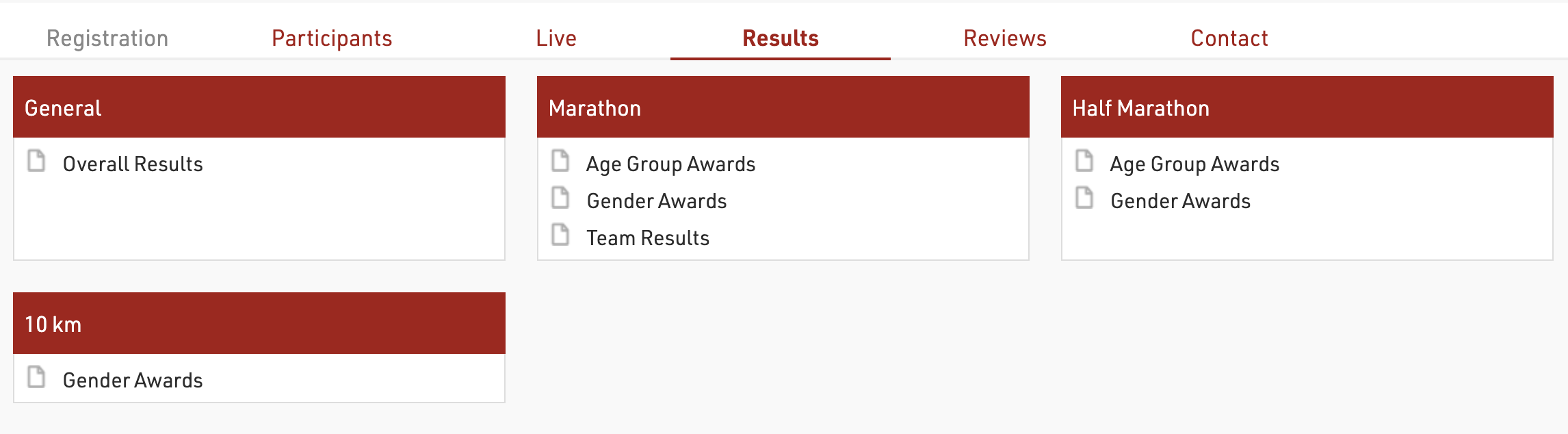
Most users now visit the results pages on mobile. That's why it is important to understand the display logic of my.raceresult.com on mobile devices to set up your results for optimal display.
When the screen gets too small to display all the data, fields disappear one-by-one.
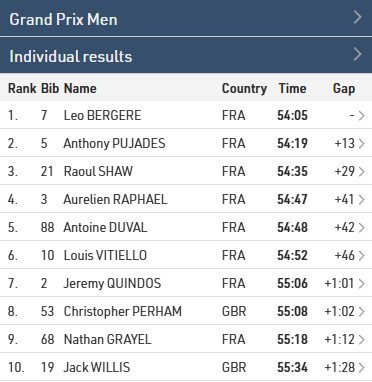
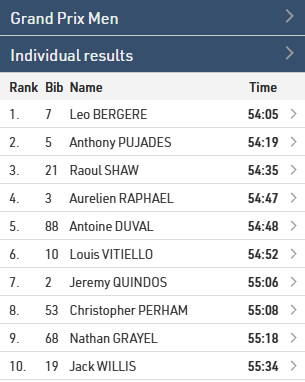
Here is an example of how the display of the results evolves when the screen gets narrower.
When the screen is wide enough, all fields are displayed:
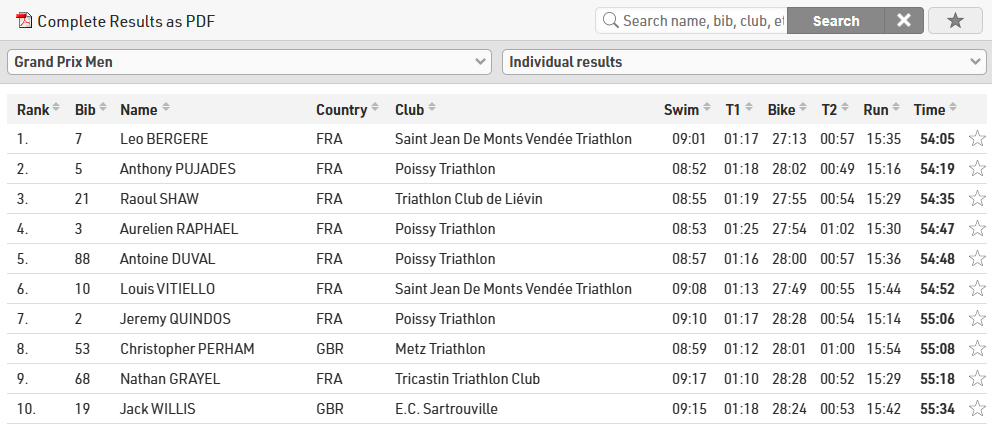
When the screen gets narrower, fields disappear one by one. The drop-down menus also switch to a more mobile-friendly layout. The hidden fields are accessible by clicking on a participant. A further click on the participant then takes the user to the participant view.
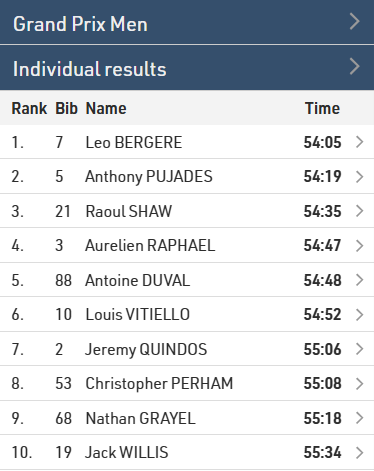
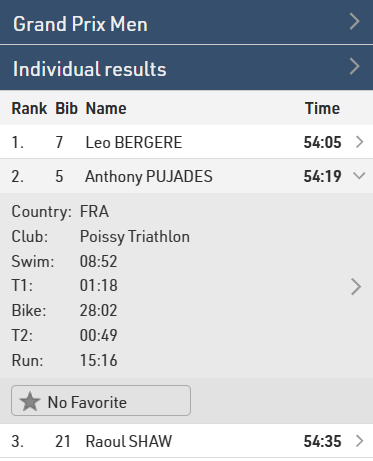
Sometimes you may want to have more control over the order in which fields are hidden. In the advanced options for each field in the output, you can select between four settings: Automatic, Hide column first , Hide column last, or Never hide column.

By default, all fields are set to Automatic. If you select a different setting for different fields, the same order logic will be applied, but within groups: as the screen gets narrower, the fields set to Hide column first will start disappearing from right to left, the one on the far right disappearing last in the group, then the fields set to Automatic will disappear following the same logic, and finally the fields set to Hide column last. Note that every field set to Never hide column has to share the narrowest screen with all the others, so use it only for the fields a viewer genuinely cannot do without.
Here the same list as above, this time with a gap time to illustrate the settings:
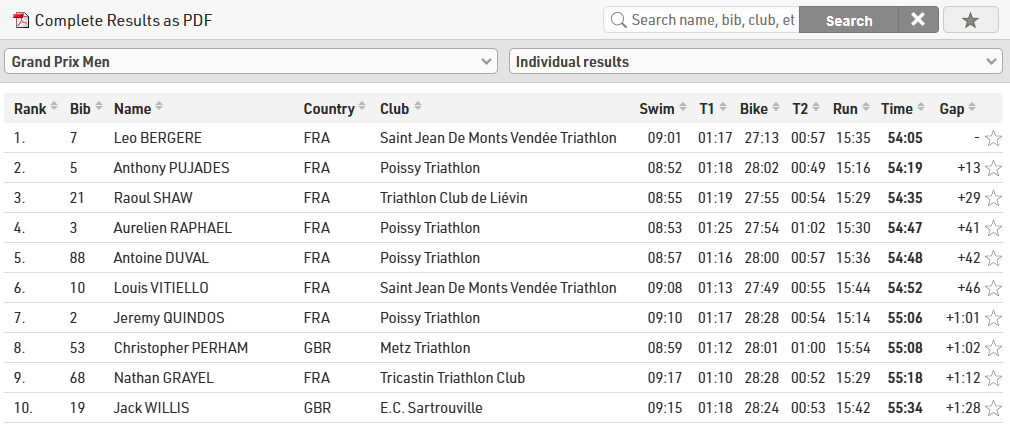
The split times, the club and the country are set to Hide column first, the gap to Automatic, and the rank, bib, name and final time to Hide column last.
This way the splits, nation and flag disappear first, while the gap stays visible until there is no space left to display it with all the fields we want to always be displayed: