Anschlüsse für Strom und Datenkommunikation sind unterhalb Schutzklappe.
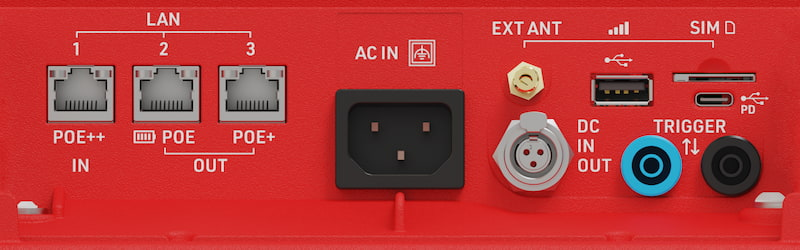
| LAN Anschlüsse |
Dient zur Verbindung über Netzwerkkabel (LAN / Ethernet Netzwerk Einstellungen) Stromversorgung über POE (in und out) (Power Over Ethernet (PoE)) |
| USB-A | Um Daten vom System abzurufen. |
| USB-C |
Stromversorgung über USB-C (USB-C Stromversorgung) |
| SIM Card | Externes Sim-Karten Fach (Externe SIM Einstellungen) |
| External 4G/LTE Antenna | Anschluss möglichkeit für eine externe 4G / LTE Antenne, zur Verbesserung der Empfangsqualität. |
| AC Anschluss | Stromversorgung über Wechselspannung, 110-240V AC, 50/60Hz (AC Stromversorgung) |
| DC Anschluss | Stromversorgung über Gleichspannung (in und out) (DC Stromversorgung) |
| Trigger Anschluss |
Zur Verbindung von Zeitnahmegeräten von Drittanbietern (Trigger Port) Dieser Anschluss ist nicht für den Anschluss eines Loop-Kabels gedacht! |
Regulatory Compliance
 |
Only use shielded ethernet cables with the system such as those rated CAT6 S/FTP |
USB
Ubidium verfügt über einen USB-A- und einen USB-C-Anschluss. Beide Anschlüsse können zum Herunterladen bzw. Hochladen von Daten auf das Gerät sowie zum Anschließen externer Geräte wie einer Tastatur verwendet werden. Der USB-C-Anschluss kann außerdem zum Anschluss an das Ubidium für die Zeitnahme genutzt werden.
Anschließen eines USB Sticks
Wenn ein USB-Stick an einen der beiden USB-Anschlüsse angeschlossen wird, erscheint die folgende Meldung, die Sie darüber informiert, dass die Einstellungen auf den Stick kopiert wurden.
Hinweis: Beim Anschließen eines USB-Sticks wird ausschließlich das FAT32-Dateisystem unterstützt! Wird ein anderes Dateisystem verwendet, erkennt das System den Stick nicht.

Passings herunterladen
Sobald ein USB-Stick angeschlossen ist, werden alle Passing files auf den Stick kopiert. Solange der USB-Stick angeschlossen bleibt, werden alle neuen Detektionen, die für die aktuelle Datei generiert werden, weiterhin auf den Stick synchronisiert. Auf dem Bildschirm mit den Passing Informationen wird unten eine Meldung angezeigt, die darauf hinweist, dass ein USB-Stick angeschlossen ist.

Systemeinstellungen
Ein USB-Stick kann auch dazu verwendet werden Einstellungen von einem Ubidium-Gerät auf ein anderes zu kopieren. Weitere Infos hierzu finden Sie unter Einstellungen.
Verbdingung für die Zeitnahme (Timing)
Über den USB-C Anschluss kann eine Verbindung zum System hergestellt werden, um die Zeitnahme durchzuführen. Schließen Sie ein datenfähiges USB-C-zu-USB-C-Kabel mit einem Ende an den USB-C-Anschluss Ihres Computers und mit dem anderen Ende an den USB-C-Anschluss des Ubidium an. Wenn der Race Result Web Server läuft, wird das System auf der Registerkarte „Timing“ von RR14 angezeigt, genau wie jede andere Systemverbindung auch.
USB Tastatur
Über einen der beiden USB-Anschlüsse kann eine USB-Tastatur an das Ubidium angeschlossen werden, um durch das Ubidum-Menü zu navigieren und Werte für verschiedene Einstellungen einzugeben. Verwenden Sie die Pfeiltasten, um durch die Menüs zu blättern, und die Tasten F1–F4, um die entsprechenden Menüschaltflächen auszuwählen (F1 für das obere Menü, F4 für das untere). Um zum vorherigen Bildschirm zurückzukehren, drücken Sie die Rücktaste.