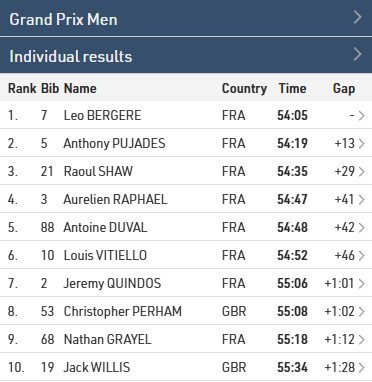
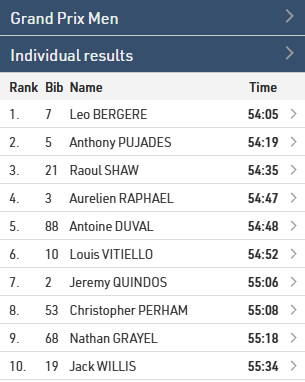
The Lists templates allow you to publish lists on my.raceresult.com, each tab is intended to make it easier for viewers to find what they need.
The general use case for each template is as follows:
- Participants - Intended for start lists / information before the race.
- Live - Intended for Live Results DURING a race, to show leaderboards etc.
- Results - Intended for full results lists after a race.
Settings
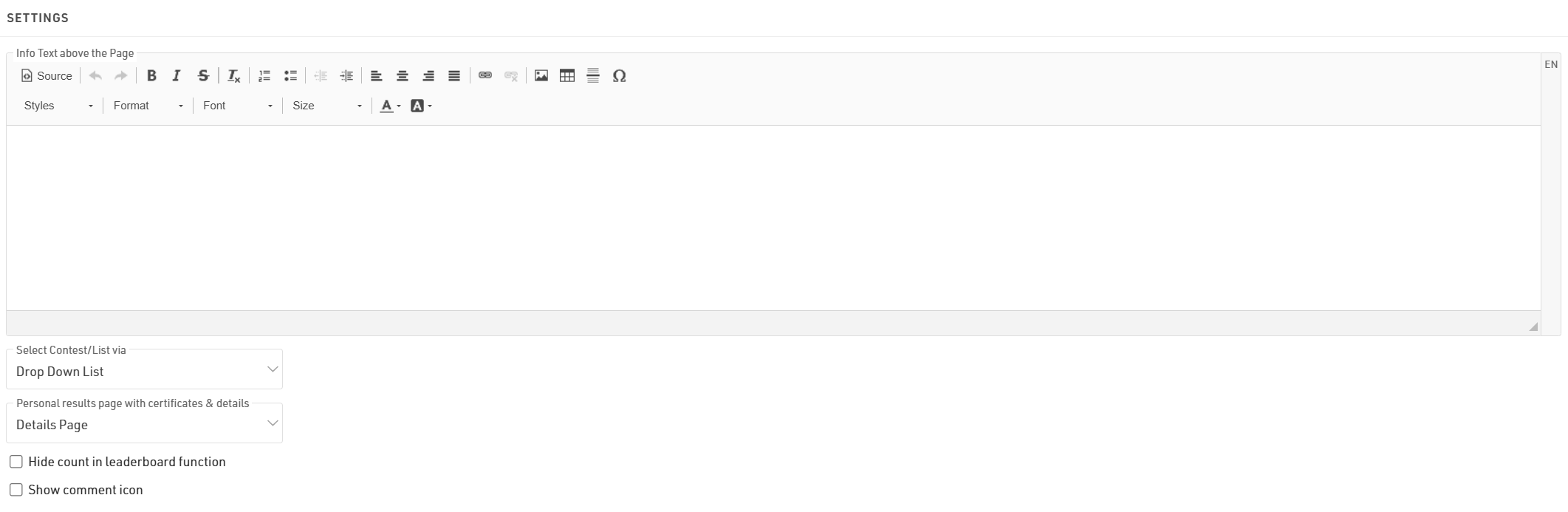
The info text will be shown above your lists and can contain additional HTML content.
If you have multiple lists they can be displayed / selected using either a drop-down list or selector boxes, the 2 options are explained in the below article.
If you select a Personal results page with certificates & details it will enable a popup window when clicking a participant within a list, this popup contains the details list and additional details as configured in the Certificates / Details settings.
When using the Leaderboard function for a list it will have an option to "Show X participants" where x is the total number of participants within the group, hiding this will replace X with "all."
Selecting the Show comment icon will show a  next to each participant in the list. Allowing viewers to see and add comments for specific participants.
Publish Lists
You can publish multiple lists through my.raceresult.com, however in most cases it is recommended to publish a single list containing all the necessary information, this keeps the user-experience simple.
When publishing multiple lists on a tab the user will be able to select the list using either the drop-down menus or box selector according to the Select Contest/List via settings, the name of the list can be adapted using the optional label.

Lists can be activated / de-activated individually so they can be hidden until required. Clicking the link to open a list will open the page directly with that list opened, this will still work even if the list or tab is not active according to the published dates allowing you to preview a list before publishing.
You can apply Contest filters to lists, if you have multiple options selected for the Contests then filters / box selector will additionally include the Contest options before the list.
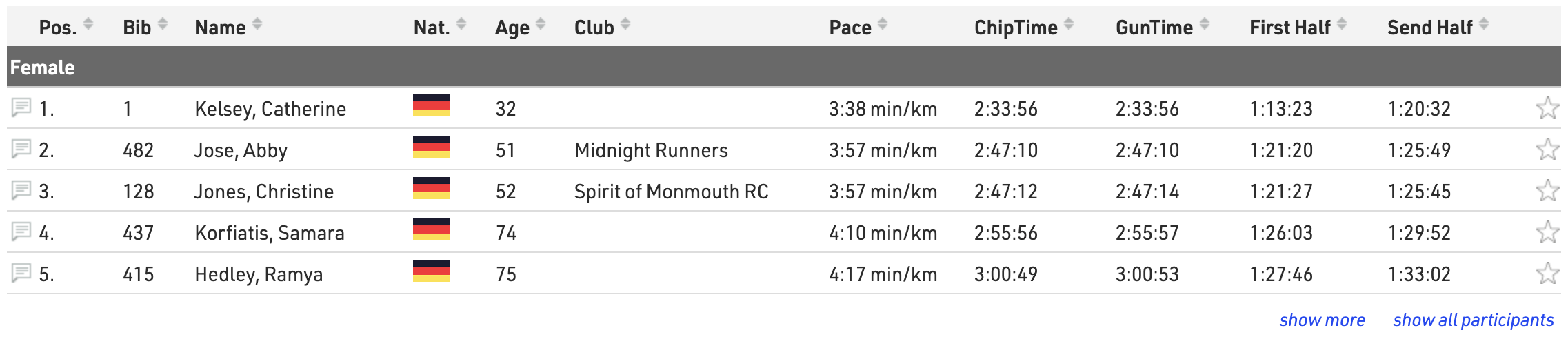
The leaderboard function for lists will reduce each group within the list to the corresponding number of records, buttons to show more or show all will be shown below each group.
With live update enabled lists will be automatically updated in real-time, most useful for live leaderboards. Note that this will only be active within the date range of the event according to the Basic Settings.
Advanced settings can be set for each list:
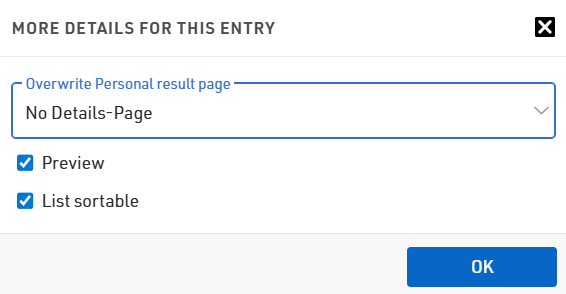
If you want to only show the Details Page on specific lists you can set use Overwrite Personal result page to enable or disable personal results pages for that specific list
If Preview for a list is disabled then selecting this list will instead automatically open a PDF of the list. Similarly if PDF is enabled then a link above will be shown allowing users to open the list in PDF format.
When List Sortable is enabled then users can sort each column in ascending / descending order by clicking the column headers.
Drop-Down / Kastendarstellung
Wenn Sie zwei oder mehr Listen veröffentlichen, muss der Nutzer auswählen, welche Liste er sehen möchte. Über die Einstellungen Auswahl Wettbewerb/Liste über können Sie zwischen Kastendarstellung und Drop-Down-Liste wählen:
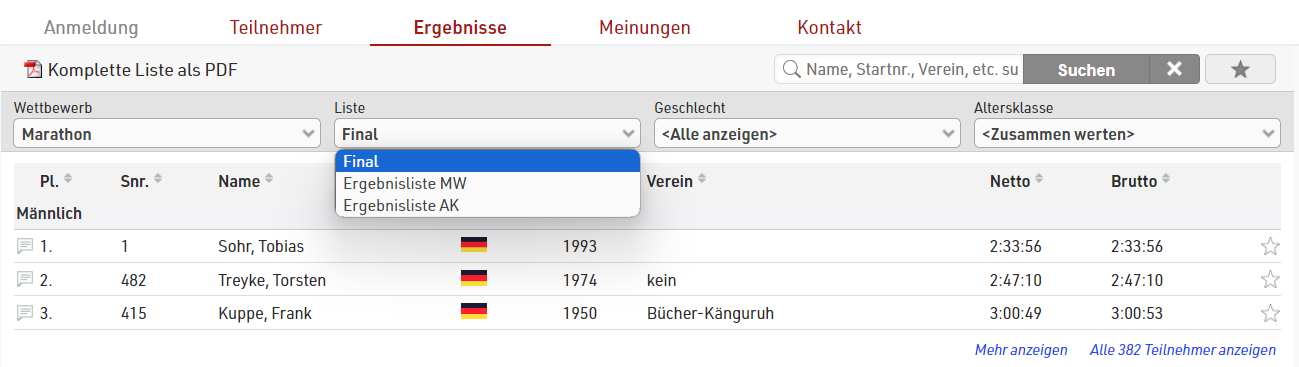
Drop-Down-Liste
Ein Drop-Down wird oberhalb der Liste eingefügt und vor etwaigen Drop-Down-Filtern einer Liste. Aus den Drop-Down-Menüs kann der Anwender wählen, welche Liste für welchen Wettbewerb er anschauen möchte.
Kastendarstellung
Beim Aufruf der Seite wird für jeden Wettbewerb ein Kasten angezeigt, in welchem die veröffentlichten Listen auswählbar sind. Eine Liste öffnet sich erst nach Klick auf dessen Namen.

Detailed Results
In the popup window when clicking a participant on my.raceresult.com you can also publish detailed results. For example:
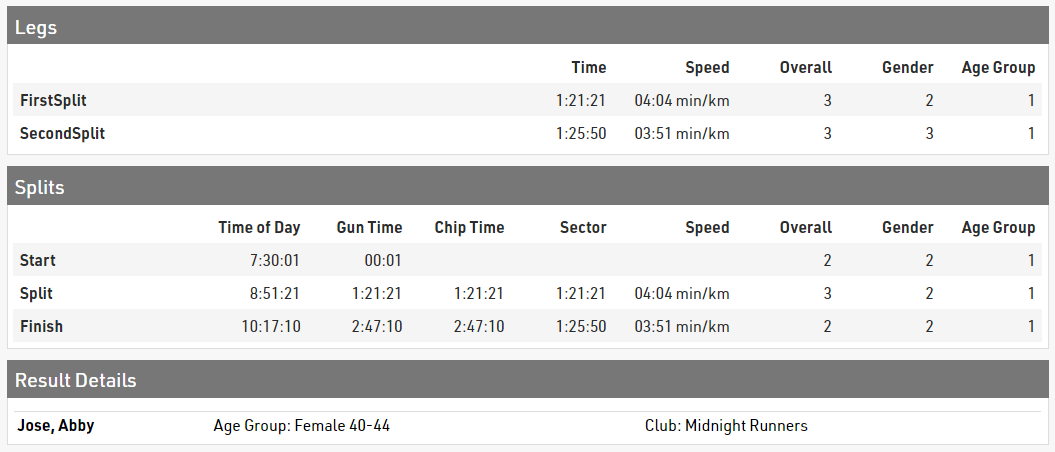
If using Splits / Legs then you can enable the table for Splits and legs under the Certificates / Details menu. Here you can select which should show (Splits/Legs or Both), the ranks which should be shown and whether you want to show the MaxRank.

A secondary detail list can be shown below with custom data, useful for additional information or when using advanced Results.
It is also possible to define more than one details page and assign them to specific lists, for example using different details pages for different contests.
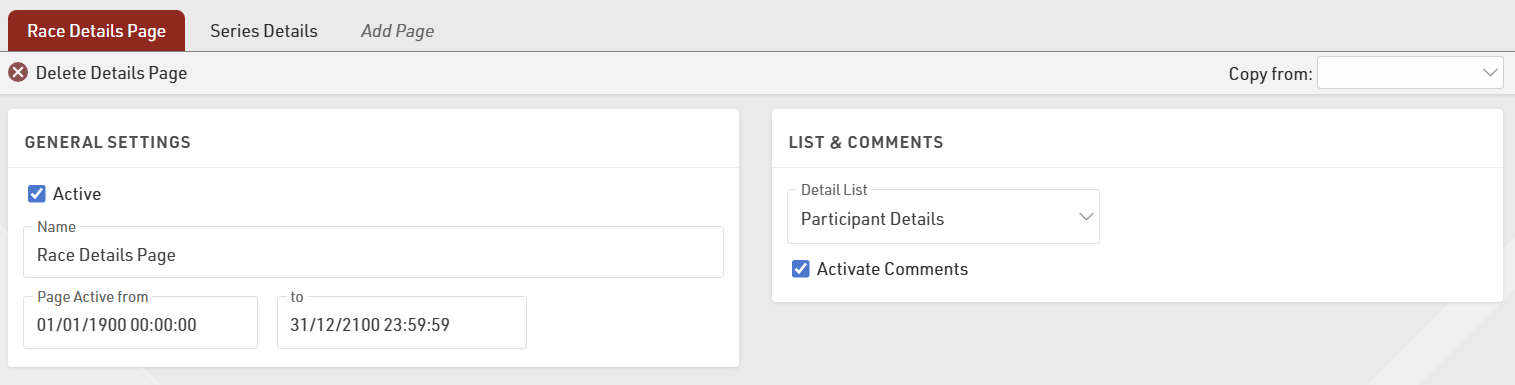
When publishing lists select the relevant output in the Detail List dropdown. This list will be created in the background and the record of the participant you clicked on will be extracted and shown in the popup window.
In many cases, Multi-Line Lists are useful to show more information in the details list.
Ergebnisanzeige auf mobilen Geräten
Die meisten Teilnehmer rufen die Ergebnisse auf mobilen Geräten ab. Daher ist es wichtig, dass Sie die Logik verstehen, mit der my.raceresult.com Ergebnisse mobil bereitstellt. Nur dann können Sie die Ergebnisse optimal an die mobile Darstellung anpassen.
Wenn der Bildschirm zu schmal wird, um alle Daten anzuzeigen, werden Spalten nach und nach ausgeblendet. Die Spalte ganz rechts bleibt dabei immer sichtbar. Diese Annahme beruht auf der Logik, dass die letzte Spalte die Zeit anzeigt, die in der Regel der wichtigste Wert ist.
Nachfolgend ein Beispiel, wie sich die Darstellung bei schmalerem Bildschirm verändert. Zunächst - bei voller Bildschirmbreite - werden alle Felder angezeigt:
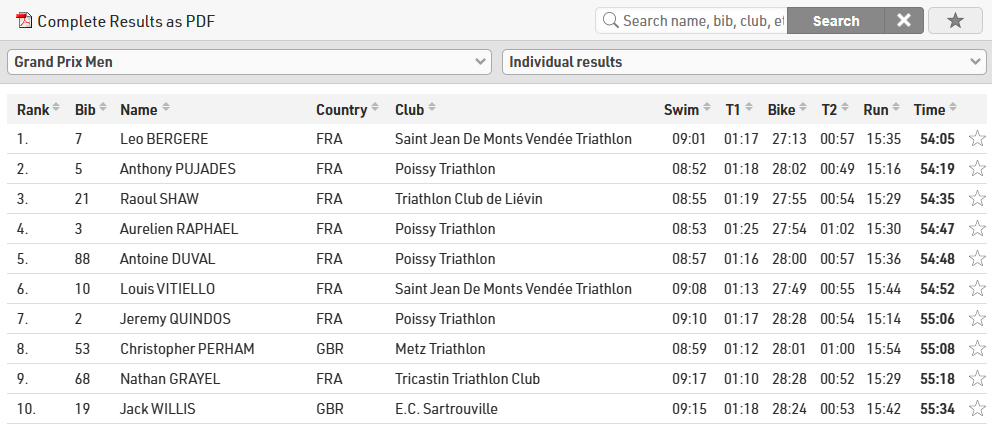
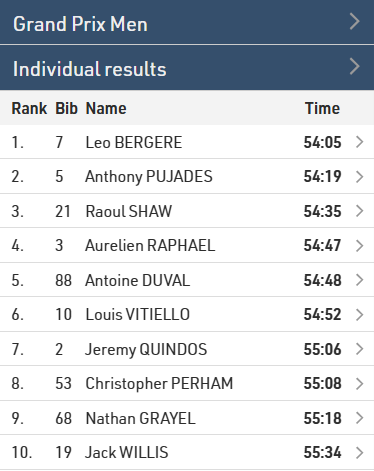
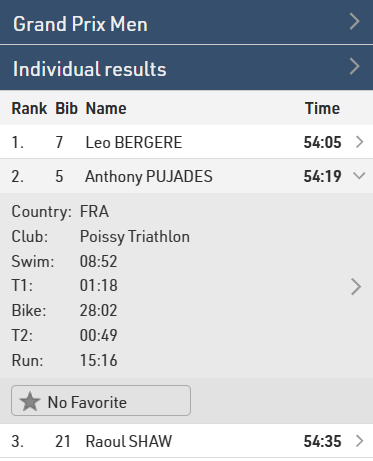
Wenn der Bildschirm schmaler wird, verschwinden die Spalten nach und nach. Das Drop-Down Menü wechselt zudem zu einer an mobile Geräte angepassten Darstellung. Die ausgeblendeten Felder werden bei Klick auf einen Teilnehmer sichtbar. Ein weiterer Klick auf den Teilnehmer führt zu den Detaillisten und Urkunden.
Manchmal möchten Sie ganz rechts allerdings ein Feld anzeigen, das nicht die Zielzeit ist, zum Beispiel den Rückstand. Aber dennoch soll die Zielzeit als wichtigstes Feld auch bei schmalem Bildschirm angezeigt werden.
Um dies zu ermöglichen, wählen Sie in den erweiterten Einstellungen des Feldes unter Ausgabe > Listen zwischen diesen drei Werten: Spalte als letztes ausblenden, Automatisch, oder Spalte als erstes ausblenden.
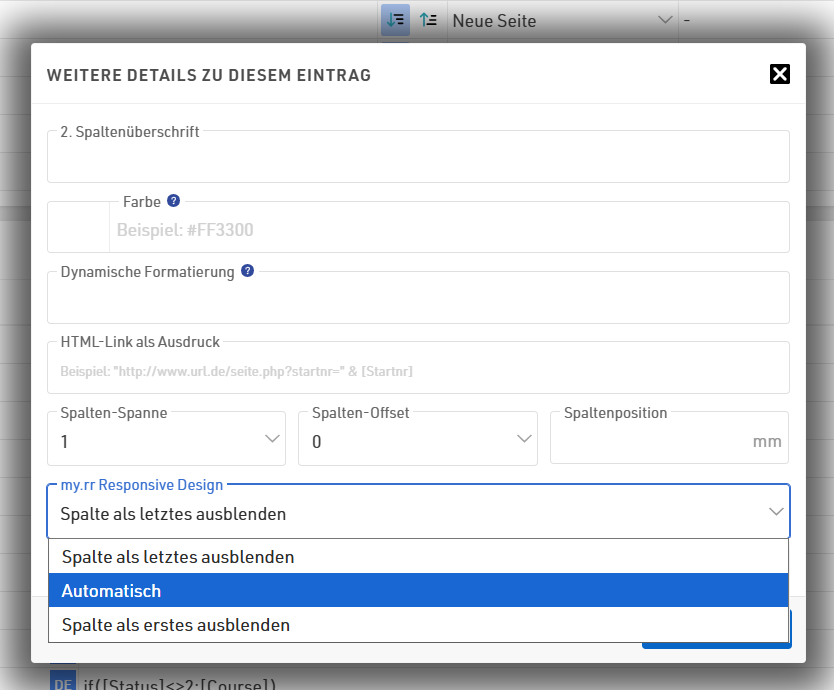
Standardmäßig sind alle Felder auf Automatisch gesetzt. Wenn Sie eine andere Einstellung wählen, wird weiterhin die bekannte Logik angewendet, aber jeweils innerhalb einer Gruppe: Wird der Bildschirm schmaler, werden zuerst die Felder mit Spalte als erstes ausblenden von rechts nach links ausgeblendet, wobei das Feld ganz rechts nach wie vor als letztes innerhalb einer Gruppe verschwindet. Erst dann werden Felder mit Automatisch entsprechend der Logik ausgeblendet und erst zum Schluss die Felder mit Spalte als letztes ausblenden.
Nachfolgend noch einmal die gleiche Liste wie oben, allerdings mit dem Rückstand auf den Sieger ganz rechts, um die eben genannten Einstellungen zu verbildlichen:
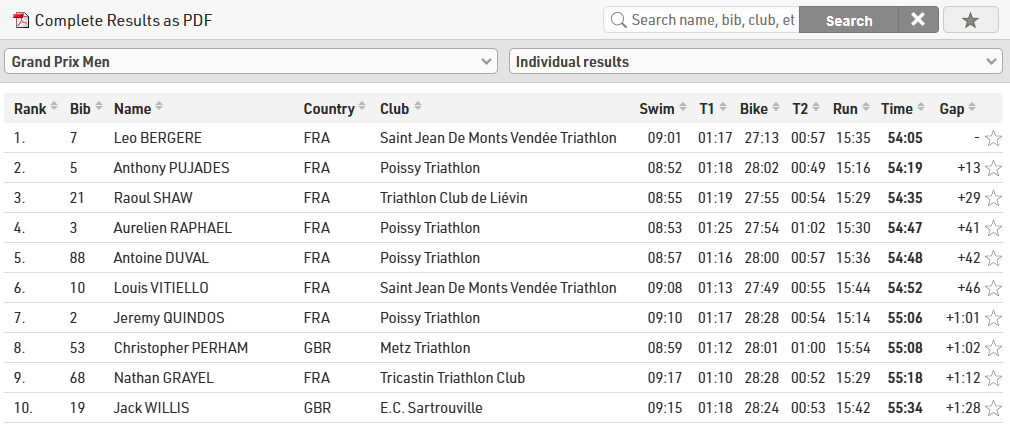
Die Zwischenzeiten und der Verein sind auf Spalte als erstes ausblenden gesetzt, das Land und die Gap Time auf Automatisch, die Platzierung, Startnummer, Name und Zielzeit auf Spalte als letztes ausblenden.
Auf diese Weise werden die Zwischenzeiten und der Verein als erstes ausgeblendet, während das Land und der Rückstand so lange sichtbar bleiben, bis der Platz nicht länger ausreicht, diese Felder zusammen mit der Platzierung, Startnummer, Name und Zielzeit anzuzeigen: